Creating Accessible Virtual Classrooms for All Learners
22 December 2025
Let’s be honest—online learning has taken the world by storm, and it’s here to stay. But here's the catch: not all virtual classrooms are created equal. For some students, especially those with disabilities or different learning needs, navigating an online class can feel more like climbing a mountain without any gear. The good news? We can fix that.
Creating accessible virtual classrooms isn’t just a nice-to-have; it’s a must. Whether you're a teacher, an administrator, or a course designer, making your digital classroom open and welcoming to everyone is essential. So, let’s dive deep (but not into jargon) and walk through how you can make your virtual classroom inclusive and accessible for all learners.
Why Accessibility in Virtual Classrooms Matters
Imagine showing up to class and not being able to hear the lecture, read the material, or interact with your classmates. Sounds frustrating, right? That’s the reality for many students when virtual classrooms aren’t designed with accessibility in mind.Accessibility isn't just about helping people with permanent disabilities—it benefits everyone. Maybe a student is recovering from surgery, has a temporary injury, or is dealing with slow internet at home. Making your virtual classroom accessible means ensuring that every student, in every circumstance, can participate fully.
In short: Accessibility = Inclusion = Better Learning ≠ Optional.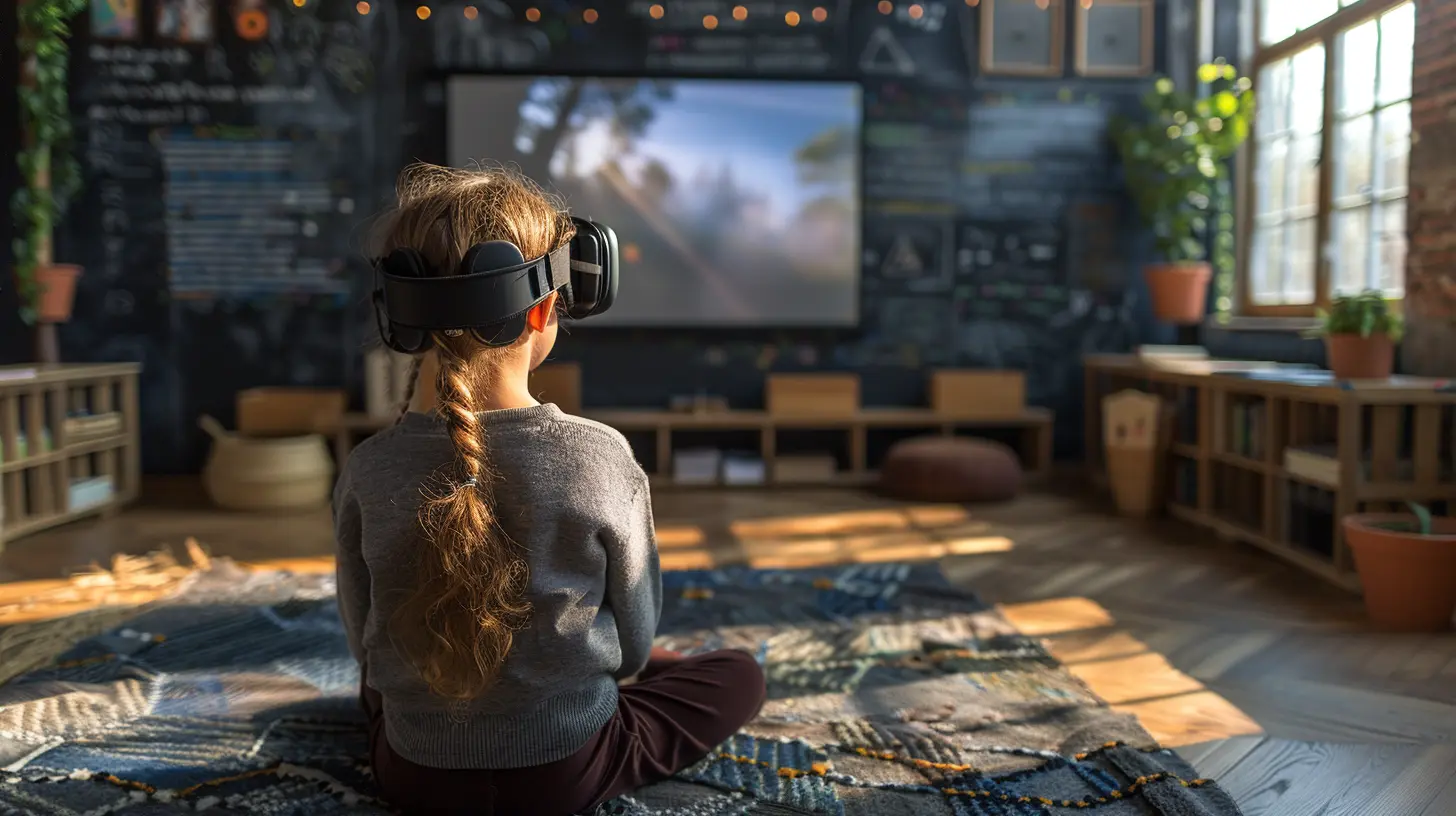
Know Your Learners
First things first, get to know who’s in your classroom. Students aren’t one-size-fits-all. They come with different needs, preferences, and challenges. Some common accessibility considerations include:- Visual impairments
- Hearing impairments
- Mobility challenges
- Learning disabilities like dyslexia
- Neurodivergent conditions such as ADHD or autism
- Mental health conditions
- English language learners
You can’t always tell who needs what just by looking—so the best bet is to design your virtual classroom in a way that works for everyone from the start. That’s called "universal design."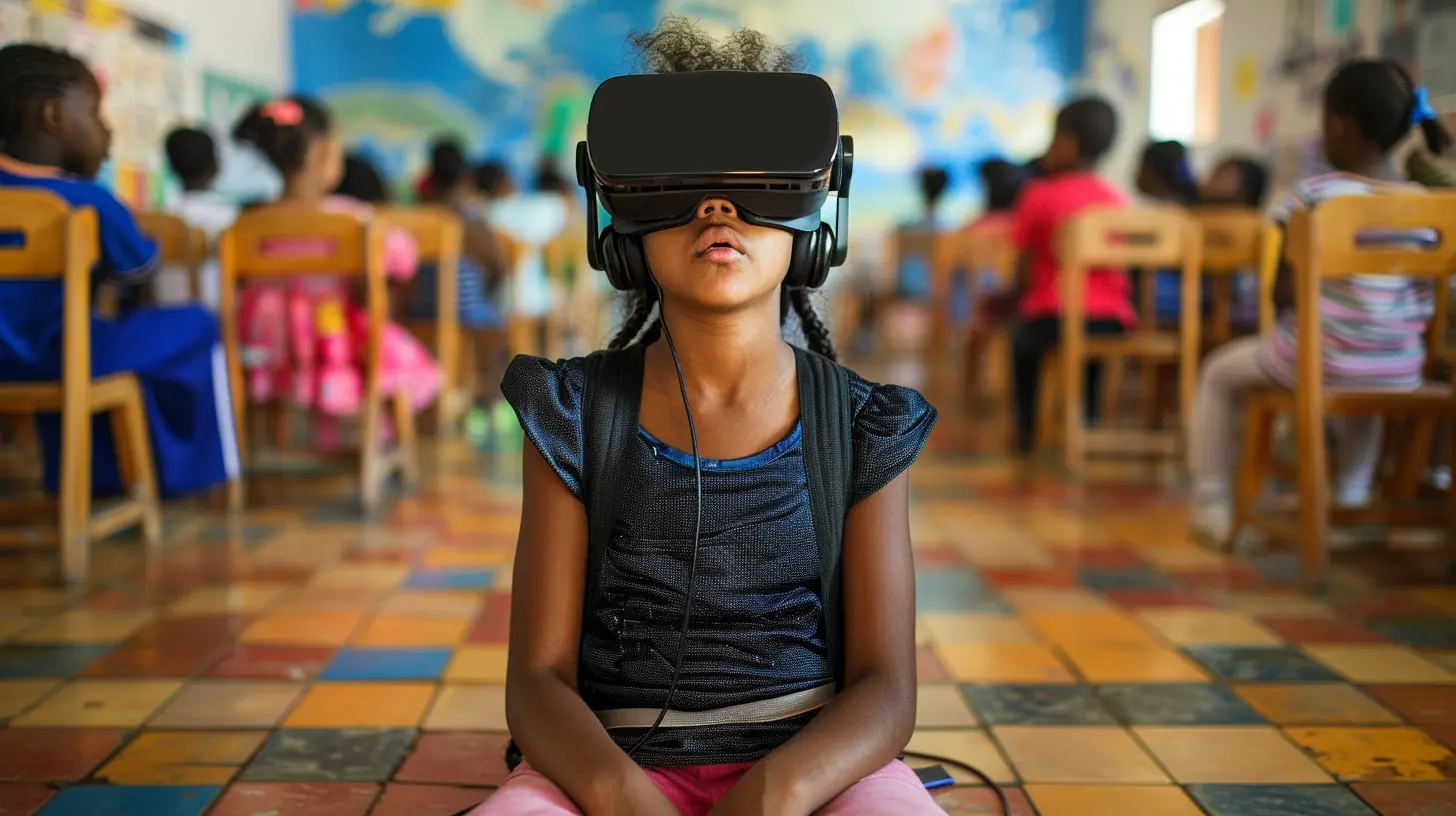
What Is Universal Design for Learning (UDL)?
Okay, quick brain snack: Universal Design for Learning (UDL) is an educational framework that aims to improve and optimize teaching for all people. The idea? Design learning experiences that are flexible and customizable.Think of it like a Swiss Army knife for education. Instead of offering one right way to teach or learn, UDL encourages multiple ways for:
- How we present information
- How students show what they’ve learned
- How we keep students engaged
UDL isn’t just helpful—it’s game-changing.
Essential Features of an Accessible Virtual Classroom
Now let's get into the nuts and bolts of actually creating an accessible virtual classroom.1. Use Clear and Consistent Navigation
Imagine walking into a building where all the signs are in a foreign language. You’d feel lost, right? That’s how students feel when they're in a messy online environment.Make sure your virtual classroom is easy to navigate. Organize content in a consistent way—use clear headings, logical menus, and labels that actually make sense. Don’t make students play detective to find their homework.
2. Provide Multiple Formats for Content
Not everyone processes information the same way. Some read faster than they listen. Others absorb better through visuals rather than text. The key? Give students options.Here’s what that might look like:
- Include video and transcript versions of lectures
- Add closed captions to videos
- Use audio versions of reading materials
- Provide downloadable PDFs of slides
- Use images with alt text (we’ll talk about that next)
3. Make Visuals Accessible
Visuals can be powerful—but only if everyone can “see” them. That’s where alt text comes in. Alt text is like a mini verbal description of an image that screen readers can pick up.When using charts, tables, or diagrams, describe them too. Summarize the key info in a paragraph so that students who can’t visually process them still get the main idea.
Also, use high-contrast colors (like black text on a white background) to make reading easier. And ditch flashy animations—they’re distracting and can even trigger medical conditions like seizures.
4. Add Captions and Transcripts
This one’s huge. If you use videos or audio content, always—yes, always—include captions or transcripts.Captions help not only students with hearing impairments but also those who are:
- Learning in noisy environments
- Studying a new language
- Just more visual in how they learn
Transcripts also come in clutch when students want to review or scan for important parts without rewatching the whole video.
5. Choose Accessible Platforms and Tools
Not all educational tech tools are created equal. Some are built with accessibility in mind; others... not so much. When picking a virtual classroom platform (like Zoom, Google Classroom, or Canvas), make sure it has:- Screen reader compatibility
- Keyboard navigation
- Customizable text sizes and styles
- Options for color contrast
And don’t forget plug-ins. Even a single inaccessible quiz tool can throw a wrench into an otherwise smooth experience.
6. Allow Flexible Pacing and Deadlines
Life happens. Some students deal with chronic conditions or fluctuating energy levels. Others juggle school and work or lack stable Wi-Fi.Give students a bit of breathing room. Offer flexible deadlines when possible, and allow asynchronous participation so students can engage when they’re at their best.
Accessibility isn’t just about design—it’s also about policies and empathy.
7. Engage Learners in Different Ways
Some students love discussion boards. Others freeze up. Some thrive in group work; others panic. Mix it up!Use diverse engagement methods like:
- Interactive polls
- Short quizzes after videos
- Journaling or reflection assignments
- Group projects with flexible roles
- One-on-one check-ins
This not only supports accessibility but also keeps things interesting.
Tools That Help You Stay Accessible
Let’s be real—building an accessible classroom sounds like a lot of work. But the good news? Tech has your back. Here are a few handy tools to lighten the load:- Grammarly: Checks readability and grammar.
- Otter.ai or Google Meet: Generates real-time captions for live classes.
- VoiceThread: Lets students comment on media with voice, text, or video.
- ALLY for LMS: Flags accessibility issues in your course material.
- Color Contrast Checker: Ensures your text and background have enough contrast.
Keep a toolkit of go-to resources so you’re not scrambling every time.
Get Feedback and Iterate
Here’s a secret: You don’t need to be perfect. You just need to care and keep trying. Encourage students to share their accessibility needs and feedback. Maybe a font is hard to read or a tool doesn't work on mobile. That’s golden info.Create a safe space where students feel okay sharing their struggles. Then act on what you hear. Accessibility is a journey, not a destination.
Train and Support Your Educators
Let’s not forget about the folks running the show—teachers. Many educators aren’t trained in accessibility practices, and that’s okay. But they should be.Offer workshops, cheat sheets, and peer mentoring. Make accessibility part of professional development, not an afterthought.
Also, remind educators: they’re not doing this alone. Lean on instructional designers, IT staff, and even your own students for support.
The Power of Empathy in Virtual Learning
At the end of the day, accessibility boils down to one thing: empathy.You don’t need to redesign the entire internet. Just start with one small step: listen, adapt, and care.
Whether it’s adding captions, giving extra time, or checking contrast on a slide, every change you make sends a message: "You belong here."
And when students feel included, respected, and supported? That’s when real learning takes off.
Quick Accessibility Checklist for Virtual Classrooms
Here’s a cheat sheet to keep you on track:✅ Consistent navigation and layout
✅ Multiple formats for all content
✅ Captions and transcripts for videos
✅ Alt text for all images
✅ High color contrast and readable fonts
✅ Accessible tools and platforms
✅ Flexible deadlines and participation
✅ Diverse engagement options
✅ Feedback-friendly environment
✅ Educator training and awareness
Keep this list handy and check off items as you go. Bit by bit, you’re building something amazing.
Final Thoughts
Creating accessible virtual classrooms isn’t about ticking boxes—it’s about opening doors. Every student deserves a fair shot at learning, no matter their circumstances.It doesn’t take a tech genius or a big budget. It just takes intention.
So, the next time you’re designing a lesson or choosing a tool, ask yourself: “Will this work for everyone?” If the answer’s “not yet,” don’t sweat it. Just take the next right step.
Let’s create classrooms where every student can show up, speak up, and shine.
all images in this post were generated using AI tools
Category:
Virtual ClassroomsAuthor:

Olivia Chapman
Discussion
rate this article
2 comments
Caleb Malone
Great insights on accessibility in virtual classrooms! Consider including specific tools or platforms that enhance learning for diverse needs, as well as strategies for ongoing feedback from students to continuously improve inclusivity.
December 30, 2025 at 1:22 PM
Olivia Chapman
Thank you for your feedback! I will definitely include specific tools and strategies for gathering student feedback in future updates to enhance inclusivity in virtual classrooms.
Bryson Romero
Empowering every learner through accessible virtual classrooms is not just a goal—it's a commitment to inclusivity and excellence in education. Let’s create environments where every student can thrive, engage, and reach their full potential. Together, we can make learning accessible for all!
December 29, 2025 at 4:52 AM
Olivia Chapman
Thank you for your insightful comment! I completely agree—accessible virtual classrooms are essential for fostering inclusivity and ensuring that every student has the opportunity to thrive. Let’s continue to advocate for these important changes in education!